
Search Shortcut cmd + k | ctrl + k
- Installation
- Documentation
- Getting Started
- Connect
- Data Import and Export
- Overview
- Data Sources
- CSV Files
- IO
- JSON Files
- Overview
- Creating JSON
- Loading JSON
- Writing JSON
- JSON Type
- JSON Functions
- Format Settings
- Installing and Loading
- SQL to / from JSON
- Caveats
- Multiple Files
- Parquet Files
- Partitioning
- Appender
- INSERT Statements
- Lakehouse Formats
- Client APIs
- Overview
- ADBC
- C
- Overview
- Startup
- Configuration
- Query
- Data Chunks
- Vectors
- Values
- Types
- Prepared Statements
- Appender
- Table Functions
- Replacement Scans
- API Reference
- C++
- CLI
- Overview
- Arguments
- Dot Commands
- Output Formats
- Editing
- Friendly CLI
- Safe Mode
- Autocomplete
- Syntax Highlighting
- Known Issues
- Go
- Overview
- Connect
- Import Data
- Run Queries
- Handle Results
- Write User Defined Functions
- Profile and Monitor
- Troubleshoot
- Java (JDBC)
- Overview
- Connect
- Import Data
- Run Queries
- Handle Results
- Write User Defined Functions
- Profile and Monitor
- Deploy as Native Image
- Troubleshoot
- Node.js (Neo)
- ODBC
- Python
- Overview
- Data Ingestion
- Conversion between DuckDB and Python
- DB API
- Relational API
- Function API
- Types API
- Expression API
- Spark API
- API Reference
- Known Python Issues
- R
- Rust
- Overview
- Connect
- Import Data
- Run Queries
- Handle Results
- Write User Defined Functions
- Profile and Monitor
- Troubleshoot
- Wasm
- Tertiary Clients
- SQL
- Introduction
- Statements
- Overview
- ANALYZE
- ALTER TABLE
- ALTER VIEW
- ATTACH and DETACH
- CALL
- CHECKPOINT
- COMMENT ON
- COPY
- CREATE INDEX
- CREATE MACRO
- CREATE SCHEMA
- CREATE SECRET
- CREATE SEQUENCE
- CREATE TABLE
- CREATE VIEW
- CREATE TYPE
- DELETE
- DESCRIBE
- DROP
- EXPORT and IMPORT DATABASE
- INSERT
- LOAD / INSTALL
- MERGE INTO
- PIVOT
- Profiling
- PREPARE, EXECUTE, and DEALLOCATE
- SELECT
- SET / RESET
- SET VARIABLE
- SHOW and SHOW DATABASES
- SUMMARIZE
- Transaction Management
- UNPIVOT
- UPDATE
- USE
- VACUUM
- Query Syntax
- SELECT
- FROM and JOIN
- WHERE
- GROUP BY
- GROUPING SETS
- HAVING
- ORDER BY
- LIMIT and OFFSET
- SAMPLE
- Unnesting
- WITH
- WINDOW
- QUALIFY
- VALUES
- FILTER
- Set Operations
- Prepared Statements
- Data Types
- Overview
- Array
- Bitstring
- Blob
- Boolean
- Date
- Enum
- Geometry
- Interval
- List
- Literal Types
- Map
- NULL Values
- Numeric
- Struct
- Text
- Time
- Timestamp
- Time Zones
- Union
- Typecasting
- Variant
- Expressions
- Overview
- CASE Expression
- Casting
- Collations
- Comparisons
- IN Operator
- Logical Operators
- Star Expression
- Subqueries
- TRY
- Functions
- Overview
- Aggregate Functions
- Array Functions
- Bitstring Functions
- Blob Functions
- Date Format Functions
- Date Functions
- Date Part Functions
- Enum Functions
- Geometry Functions
- Interval Functions
- Lambda Functions
- List Functions
- Map Functions
- Nested Functions
- Numeric Functions
- Pattern Matching
- Regular Expressions
- Struct Functions
- Text Functions
- Time Functions
- Timestamp Functions
- Timestamp with Time Zone Functions
- Union Functions
- Utility Functions
- Window Functions
- Constraints
- Indexes
- Meta Queries
- DuckDB's SQL Dialect
- Overview
- Indexing
- Friendly SQL
- Keywords and Identifiers
- Order Preservation
- PostgreSQL Compatibility
- SQL Quirks
- PEG Parser
- Samples
- Configuration
- Extensions
- Overview
- Installing Extensions
- Advanced Installation Methods
- Distributing Extensions
- Versioning of Extensions
- Troubleshooting of Extensions
- Core Extensions
- Overview
- AutoComplete
- Avro
- AWS
- Azure
- Delta
- DuckLake
- Encodings
- Excel
- Full Text Search
- httpfs (HTTP and S3)
- Overview
- HTTP(S) Support
- Hugging Face
- S3 API Support
- S3 and AWS Authentication
- Legacy Authentication Scheme for S3 API
- Iceberg
- ICU
- inet
- jemalloc
- Lance
- MotherDuck
- MySQL
- ODBC
- Quack
- PostgreSQL
- Spatial
- SQLite
- TPC-DS
- TPC-H
- UI
- Unity Catalog
- Vortex
- VSS
- Quack Remote Protocol
- Guides
- Overview
- Data Viewers
- Database Integration
- File Formats
- Overview
- CSV Import
- CSV Export
- Directly Reading Files
- Directly Reading DuckDB Databases
- Excel Import
- Excel Export
- JSON Import
- JSON Export
- Parquet Import
- Parquet Export
- Querying Parquet Files
- File Access with the file: Protocol
- Meta Queries
- Describe Table
- EXPLAIN: Inspect Query Plans
- EXPLAIN ANALYZE: Profile Queries
- List Tables
- Summarize
- DuckDB Environment
- Network and Cloud Storage
- Overview
- HTTP Parquet Import
- HTTP CSV Import
- S3 Parquet Import
- S3 Parquet Export
- S3 Iceberg Import
- S3 Express One
- GCS Import
- Cloudflare R2 Import
- DuckDB over HTTPS / S3
- Share a Views-Only Database
- Fastly Object Storage Import
- SeaweedFS Import
- Tigris Import
- ODBC
- Performance
- Overview
- Environment
- Import
- Schema
- Indexing
- Join Operations
- File Formats
- How to Tune Workloads
- My Workload Is Slow
- Out-of-Memory Issues
- Benchmarks
- Working with Huge Databases
- Python
- Installation
- Executing SQL
- Jupyter Notebooks
- marimo Notebooks
- SQL on Pandas
- Import from Pandas
- Export to Pandas
- Import from Numpy
- Export to Numpy
- SQL on Arrow
- Import from Arrow
- Export to Arrow
- Relational API on Pandas
- Multiple Python Threads
- Integration with Ibis
- Integration with Polars
- Integration with PyTorch
- Using fsspec Filesystems
- SQL Editors
- SQL Features
- AsOf Join
- Full-Text Search
- Graph Queries
- query and query_table Functions
- Merge Statement for SCD Type 2
- Timestamp Issues
- Snippets
- Creating Synthetic Data
- Dutch Railway Datasets
- Sharing Macros
- Analyzing a Git Repository
- Importing Duckbox Tables
- Copying an In-Memory Database to a File
- Calculating a Database Checksum
- Troubleshooting
- Glossary of Terms
- Browsing Offline
- Operations Manual
- Overview
- Backup Extension Repositories
- DuckDB's Footprint
- Installing DuckDB
- Logging
- User Agents
- Securing DuckDB
- Non-Deterministic Behavior
- Limits
- DuckDB Docker Container
- Development
- DuckDB Repositories
- Release Cycle
- Metrics
- Profiling
- Building DuckDB
- Overview
- Build Configuration
- Building Extensions
- Android
- Linux
- macOS
- Raspberry Pi
- Windows
- Python
- R
- Troubleshooting
- Unofficial and Unsupported Platforms
- Benchmark Suite
- Testing
- Internals
- Sitemap
- Live Demo
VisuaLeaf SQL Editor
VisuaLeaf is a cross-platform desktop database client for Windows, macOS, and Linux. Besides a SQL editor, it includes a visual query builder, entity-relationship diagrams, and charts built from query results. VisuaLeaf ships with the DuckDB JDBC driver, so no separate driver installation is required. It offers a free Community Edition as well as paid editions with additional features.
Installing VisuaLeaf
- Download and install VisuaLeaf from the download page.
Connecting to a DuckDB Database
-
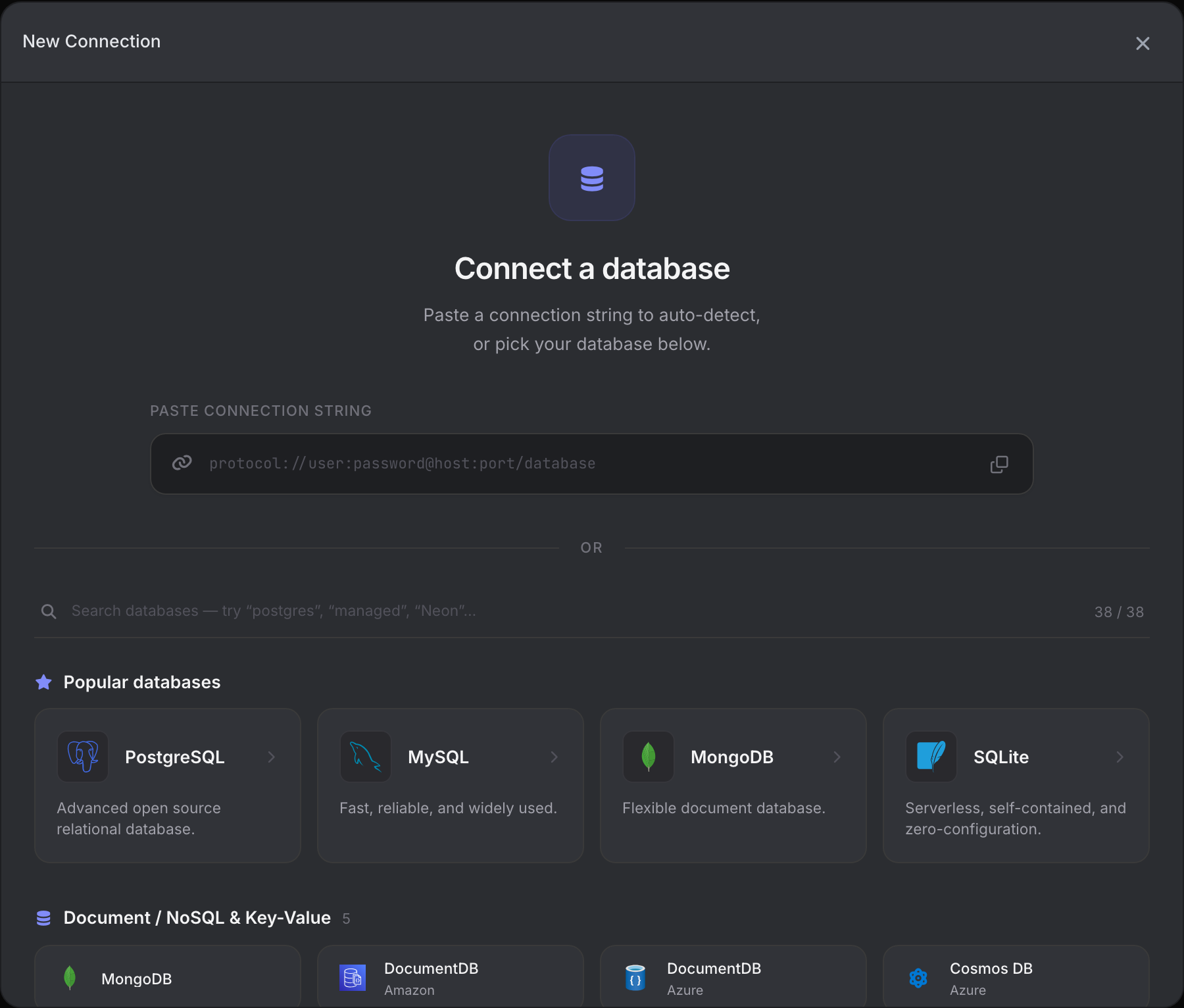
Open VisuaLeaf and click New Connection on the welcome screen.
-
Type
duckdbin the search box and select DuckDB.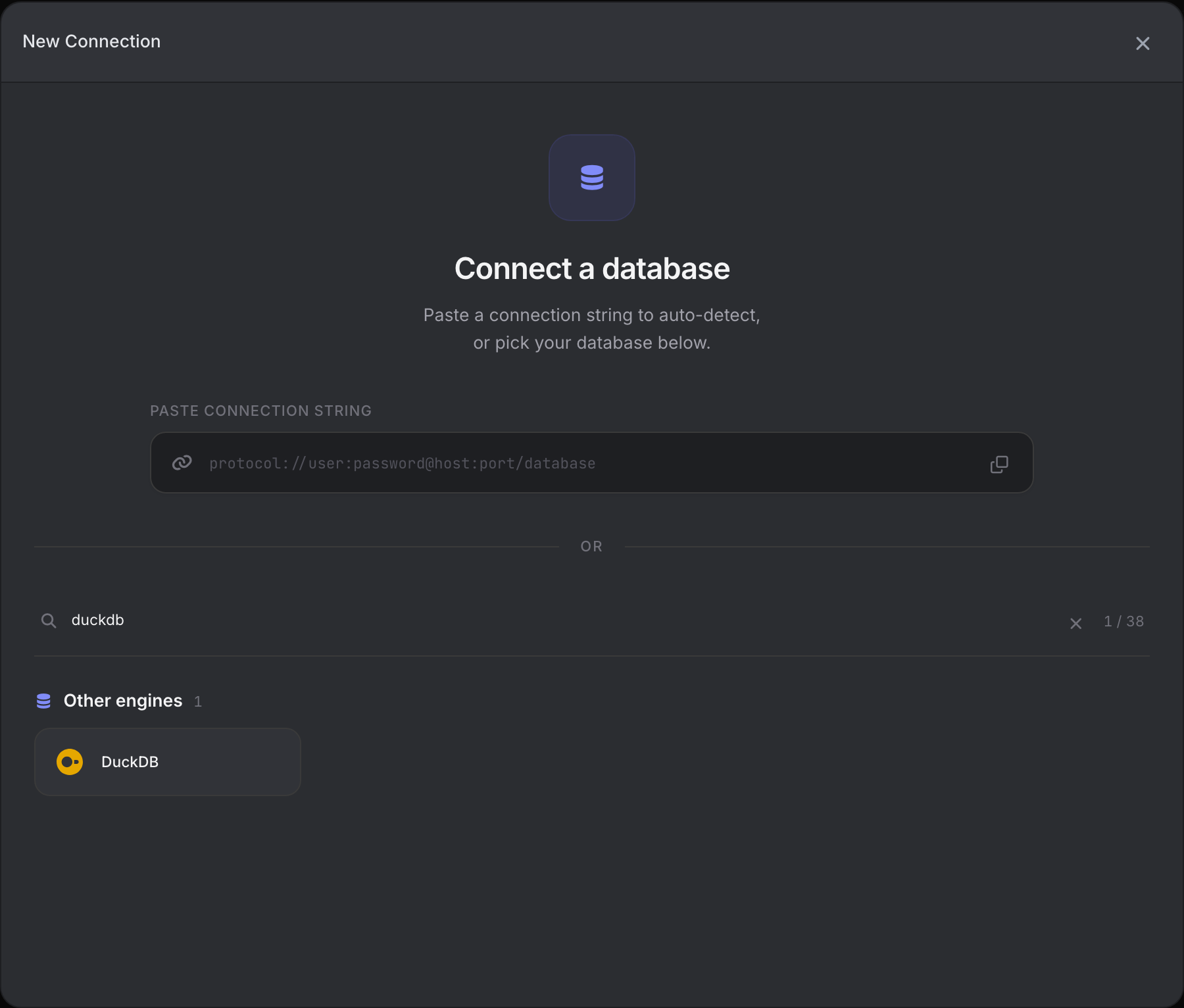
-
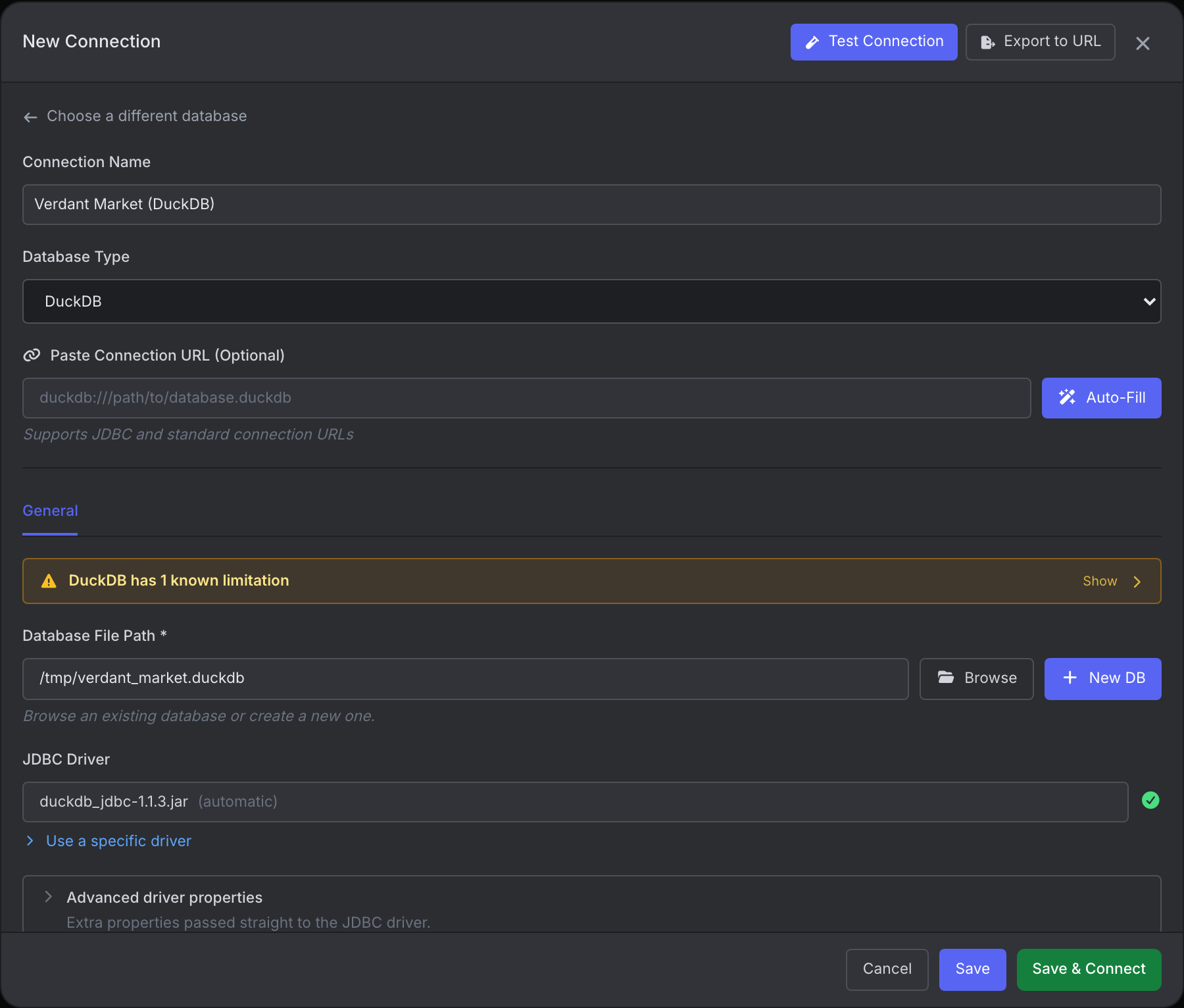
Give the connection a name and enter the path to your DuckDB database file in Database File Path, or click Browse to pick it. To create a new database file instead, click New DB.
-
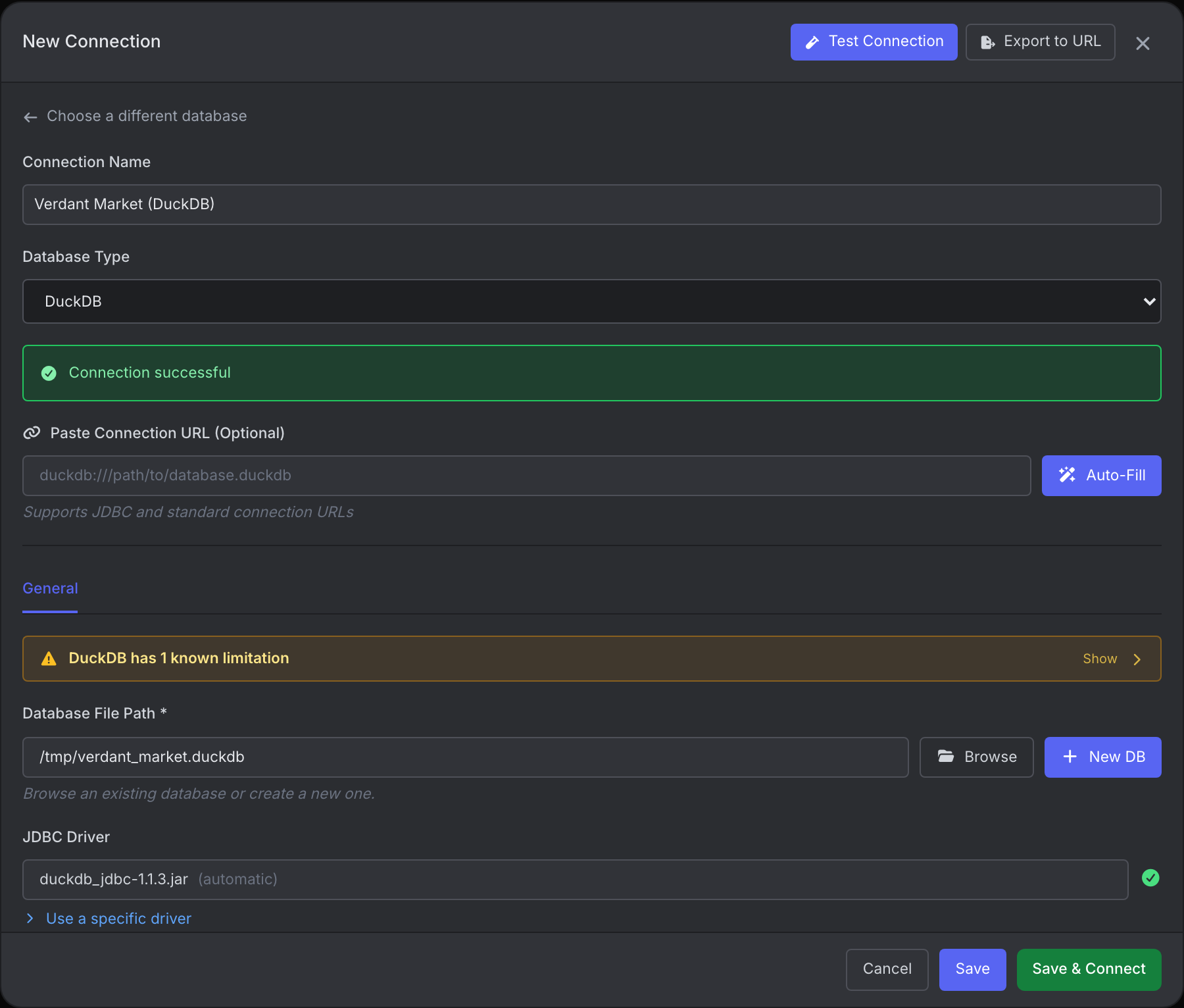
Click Test Connection to confirm the file can be opened, then click Save & Connect.
DuckDB allows only one process to open a database file for writing at a time. If another process (for example, the DuckDB CLI) has the file open, close it before connecting.
-
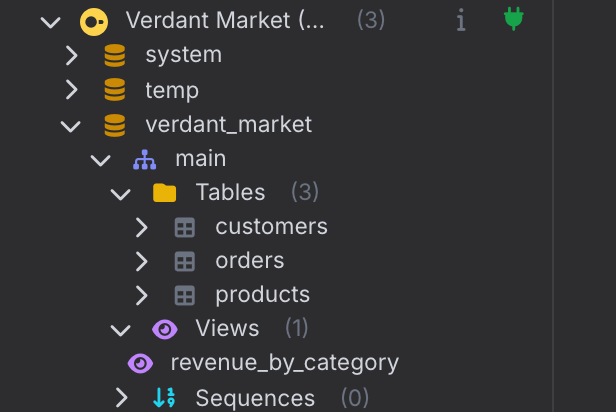
The connection appears in the Connections panel. Expand it to browse the schemas, tables, views, and sequences in the database.
-
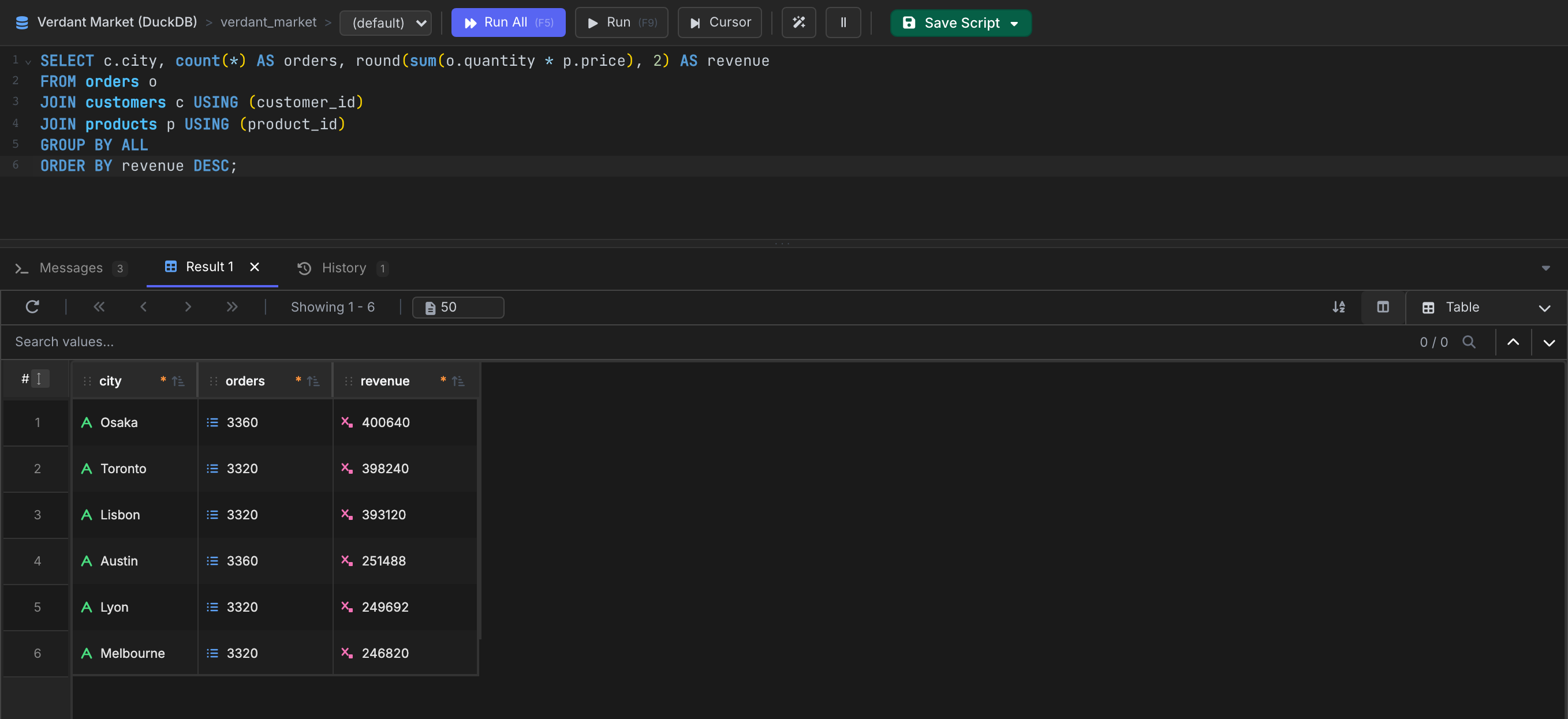
Right-click the database and choose New SQL Editor, write a query, and click Run All to see the results.
Now you are ready to query DuckDB with VisuaLeaf.
© 2026 DuckDB Foundation, Amsterdam NL